Physical Address
304 North Cardinal St.
Dorchester Center, MA 02124
Physical Address
304 North Cardinal St.
Dorchester Center, MA 02124

A complete step-by-step guide on how to create an MQL5 community account. Learn how to register at MQL5.com, receive your login credentials via email, and activate your account to access the Market, Signals, VPS, and more.
If you are looking for a complete MQL5 account registration guide on how to create MQL5 account, you are in the right place. This MQL5 sign up tutorial will walk you through how to register MQL5 community account step by step using the Manual registration method. MQL5.com is the official community platform by MetaQuotes, the developer behind MetaTrader 4 (MT4) and MetaTrader 5 (MT5). By creating an account, you will gain access to powerful features such as the Market, Signals, Virtual Hosting (VPS), and a global trading community Forum.
MQL5.com is the official community website developed and maintained by MetaQuotes. It serves as the central hub for MetaTrader users worldwide. Whether you are a beginner trader or an experienced developer, having an MQL5 account opens the door to a wide range of tools and services.
Here are the main features you can access after you create MQL5 community account:
In short, your MQL5 account is your passport to the entire MetaTrader ecosystem.
Before you start the registration process, make sure you have the following ready. This MQL5 account registration guide recommends preparing these items in advance so you can register MQL5 community account step by step without interruptions:
Once you have these ready, you can proceed to the next step.
Follow these five simple steps to successfully register your MQL5 account. This MQL5 sign up tutorial is based on the Manual registration method, which is straightforward and quick to complete. We will show you how to register MQL5 community account step by step with detailed screenshots.
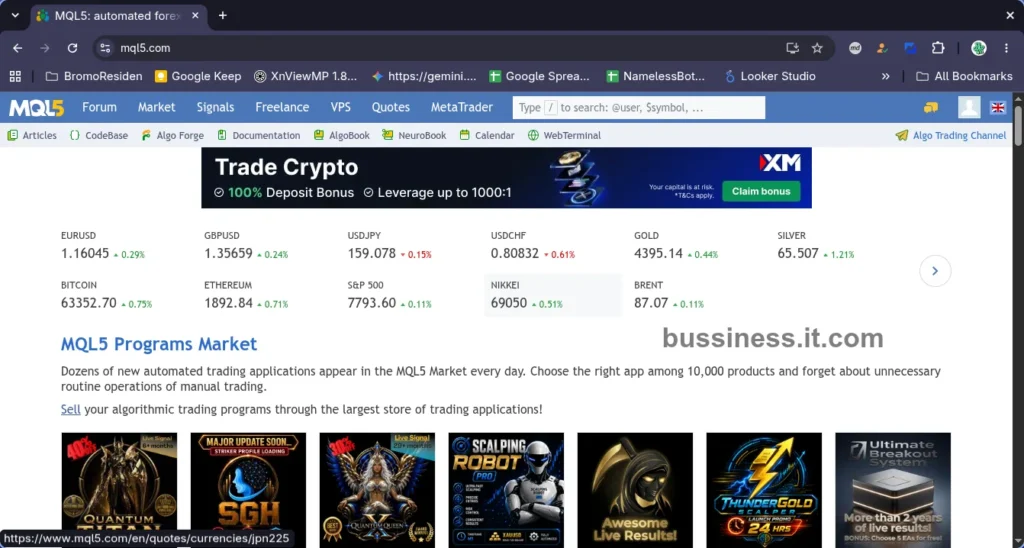
First, open your preferred web browser. Next, type www.mql5.com in the address bar and press Enter. You will land on the MQL5.com homepage, which is the starting point of your registration journey. To register MQL5 community account step by step, this is where everything begins.
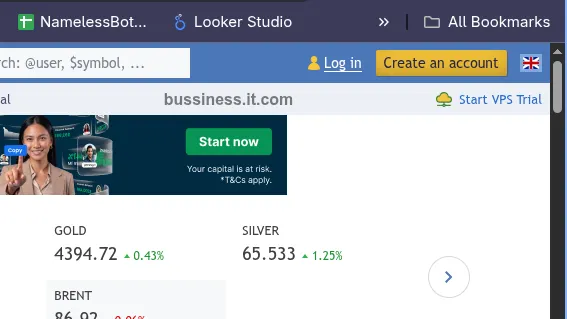
Once you are on the homepage, look at the top right corner of the page. There, you will find the “Create an account” button. Click that button to begin the registration process. After clicking it, you will be automatically redirected to the official registration page at:
This is the page where you will fill in your registration details.
On the registration page, you will see the following elements:
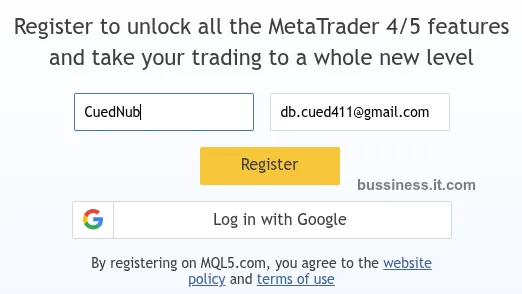
1. Login (Input Box)
This is where you enter your desired username. Your username will be your public identity across the entire MQL5 community, so choose it carefully.
Rules for creating a username:
@, #, !, or %Examples of valid usernames:
CuedNubBudiForex99RizkyEA2. Your Email (Input Box)
Enter your active email address in this field. This is very important because MQL5 will send your login password to this email. Make sure there are no typos.
Example: db.cued411@gmail.com
3. Register (Button)
After filling in both fields, click the “Register” button to submit your registration form.
4. Log in with Google (Button)
This is an alternative quick registration option. However, this method is not covered in this guide. We will focus on the Manual method instead.
Warning: Important: Before clicking Register, double-check your username and email address to make sure everything is correct.
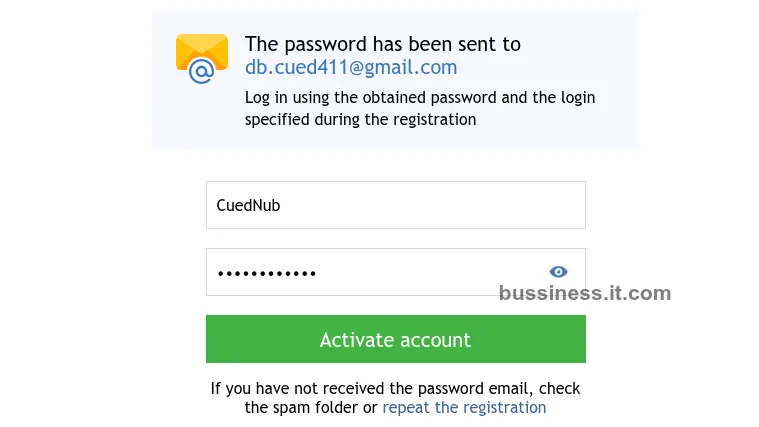
After clicking the Register button, a confirmation message will immediately appear on your screen:
“The password has been sent to [your email address]”
“Log in using the obtained password and the login specified during the registration”
This means your registration was successful. Next, follow these steps:
noreply@mql5.com.CuedNub).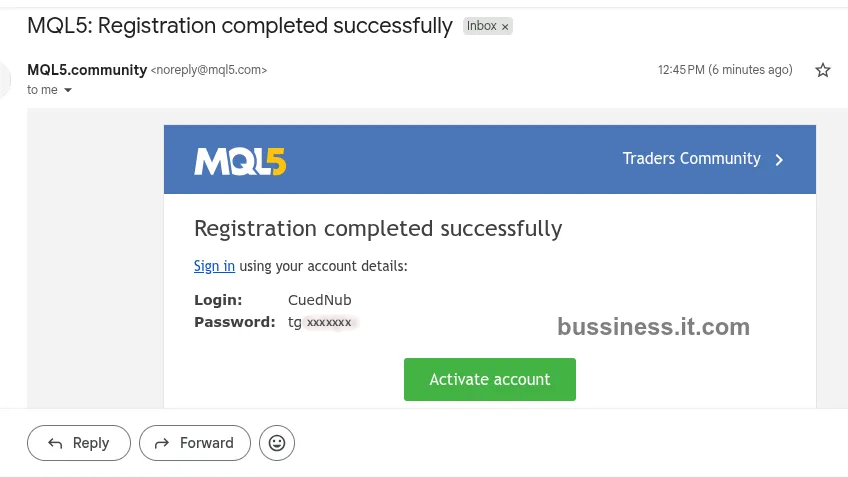
Tip: If you cannot find the email in your inbox, check your Spam or Junk folder.
After obtaining your login credentials from the email, go back to the MQL5 browser tab. You will see an activation form with the following fields:
1. Your Login (Input Box)
This field will already be auto-filled with your registered username. You do not need to type anything here.
2. Password (Input Box)
Enter the password that you received from the MQL5 email exactly as written.
Finally, click the “Activate account” button. After clicking it, your account will be immediately activated.
Congratulations! Your MQL5 account has been successfully created and activated!
Now that your account is active, here are the recommended next steps to get the most out of your MQL5 experience. As this MQL5 sign up tutorial has shown, creating your account is just the beginning:
Here are some frequently asked questions about the MQL5 account registration process. If you follow this MQL5 account registration guide carefully, most common issues can be avoided:
Yes, creating an MQL5 account is completely free. There are no registration fees whatsoever. However, some products and services on MQL5.com, such as premium indicators or VPS hosting, may require payment.
If you did not receive the email from MQL5.community, try the following solutions:
Unfortunately, MQL5 does not allow users to change their username after registration. Therefore, it is very important to choose your username carefully before clicking the Register button.
Yes, absolutely. Your MQL5 community account is universal and works seamlessly with both MetaTrader 4 (MT4) and MetaTrader 5 (MT5) platforms. You only need one account to access all MQL5 services across both platforms.
In summary, learning how to create MQL5 account is a simple and straightforward process that only takes a few minutes. This MQL5 sign up tutorial has shown you the complete MQL5 account registration guide from start to finish. To recap, here are the five steps you need to follow:
Now that your account is active, a world of trading tools, signals, and community resources is at your fingertips. Whether you want to download Expert Advisors, follow professional traders, or join the global trading discussion, MQL5 has everything you need.
Create your MQL5 account now and start exploring the full potential of MetaTrader today!
Want to learn more about trading? Check out these guides: