Physical Address
304 North Cardinal St.
Dorchester Center, MA 02124
Physical Address
304 North Cardinal St.
Dorchester Center, MA 02124

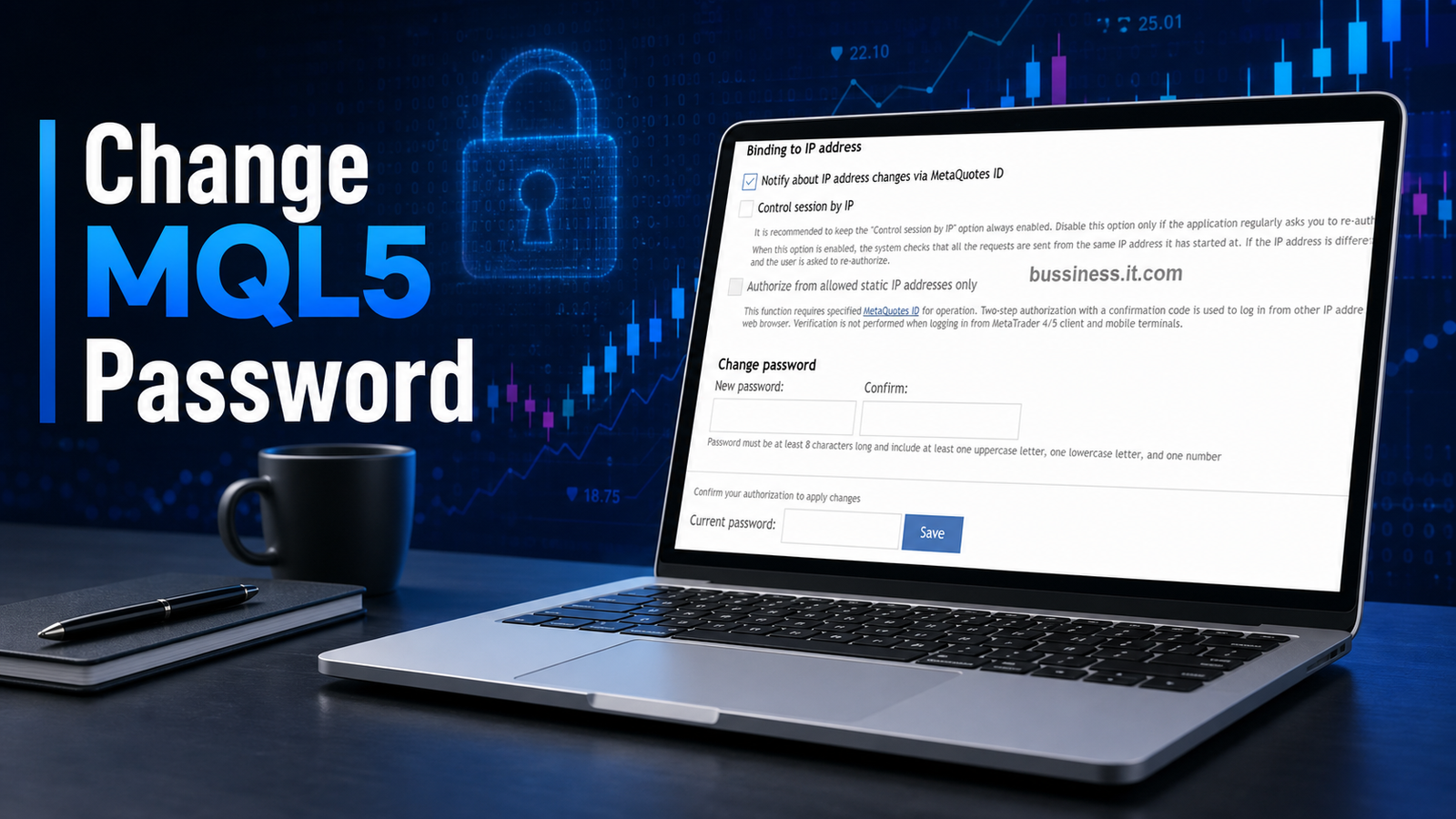
This guide shows you how to change MQL5 password step by step. Replace your default temporary password with a strong, secure one. Includes annotated screenshots for every step so you never get lost.
If you just registered a new trading account and want to know how to change MQL5 password, you are in the right place. Every new MQL5 account comes with a temporary default password sent to your email, and you should change MQL5 password as soon as possible to keep your account secure.
In this tutorial, you will learn every step from finding your default password in your email to verifying your new login credentials. The process takes less than five minutes. Follow along with the annotated screenshots below, and you will finish with a strong, secure password on your MQL5 account.
When you sign up on MQL5, the platform sends an auto-generated temporary password to your inbox. This default password is weak, predictable, and visible in plain text inside your email. Therefore, anyone who gains access to your email could easily log in to your MQL5 account without permission.
Moreover, a strong password is the first line of defense for your trading account. In fact, changing it early prevents confusion later when you try to log in to MetaTrader or other MQL5 services. If you have not created your account yet, you can first follow our guide on how to create an MQL5 account before continuing with this tutorial.
Before you start, make sure you have the following items ready. In addition, this will make the entire process smooth and quick from start to finish.
Now that you have everything ready, follow these eight steps in order. Each step includes a screenshot so you can match your screen with the tutorial.
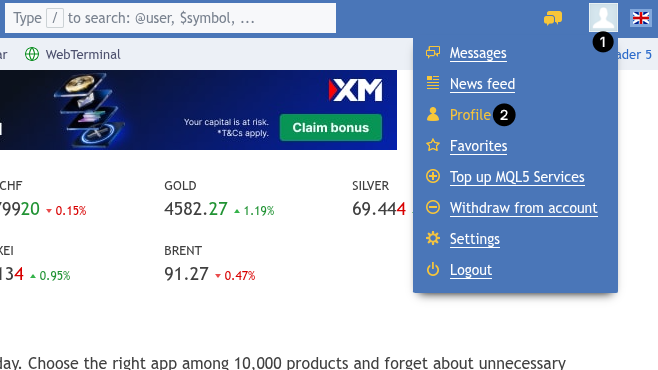
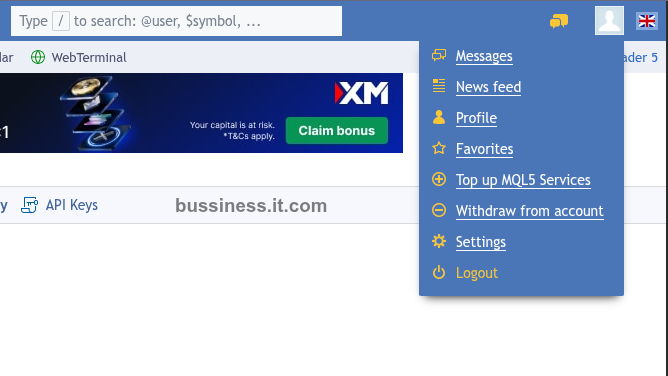
First, open Google Chrome and go to https://www.mql5.com/. Then, look at the top-right corner of the header. Click the Profile avatar icon. Next, in the dropdown menu that appears, click Profile.
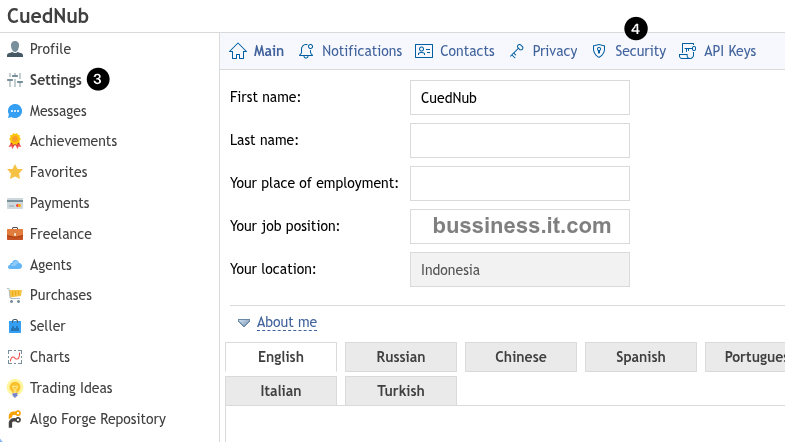
On your Profile page, find the left sidebar menu. Then, click Settings. After that, look at the horizontal tab bar at the top of the content area. You will see these tabs in order: Main, Notifications, Contacts, Privacy, Security, API Keys. Finally, click the Security tab.
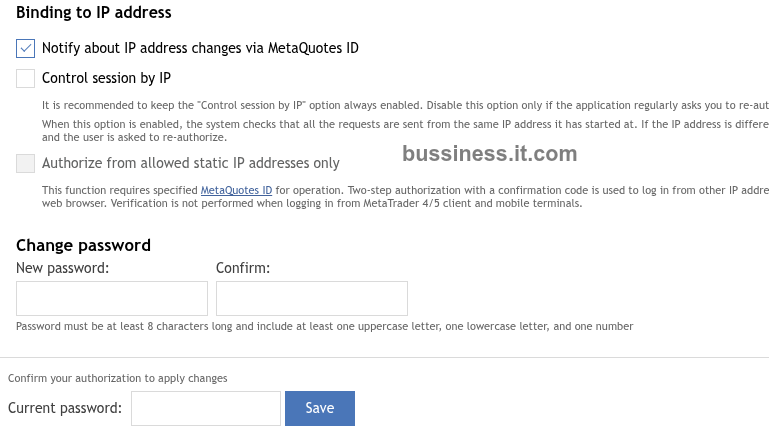
On the Security page, scroll down slightly. Next, find the text link labeled Change password. Click it to expand the form. The form will reveal three fields: New password, Confirm, and Current password. Also, you will see a blue Save button at the bottom of the form.
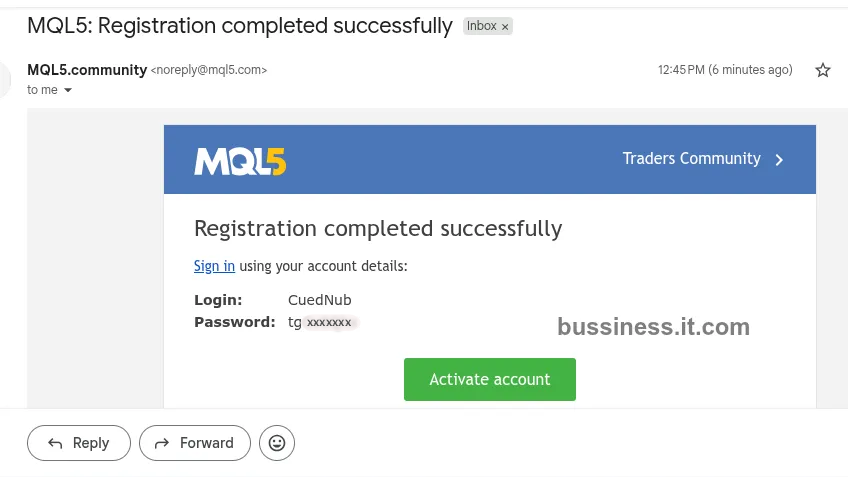
Now you need the default temporary password. First, open your registered email inbox (for example, Gmail). Then, search for an email from MQL5.community with the subject line “MQL5: Registration completed successfully”.
Inside the email body, you will find two important labels. The Login label shows your account username. Meanwhile, the Password label shows the auto-generated temporary password. Copy the value next to Password because you will need it in the next step.
Now, return to the Change password form on MQL5. Then, follow these four actions in order:
Important Note: Your new password must follow these rules:
Here is something important to know. The MQL5 website does not display a success popup or confirmation message after you click Save. Instead, the page simply returns to the main Settings dashboard without any error. Therefore, this silent return is actually the confirmation that your password change was saved successfully.
After you change MQL5 password, you should log out and log back in to make sure the new password works correctly. This quick verification takes less than one minute.
First, click the Profile avatar icon in the top-right corner again. Then, scroll to the bottom of the dropdown menu. Finally, click Logout (indicated by a power icon next to the label).
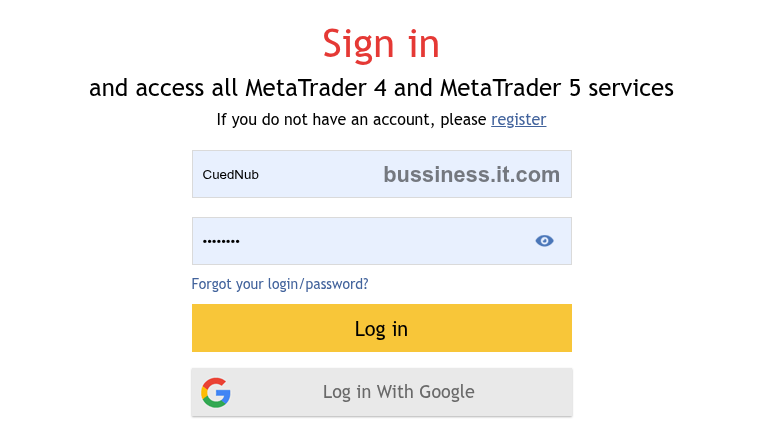
On the MQL5 homepage header, click Log in. Then, enter your username in the login field. Next, enter your new password in the password field. After that, click the yellow Log in button. As a result, a successful login confirms your new password is active and working correctly.
When you create a new password, MQL5 enforces specific security requirements. Therefore, make sure your password meets all of the following criteria before you click Save:
As a result, a password like Trading2025! would pass all four rules with no problem. However, a simple password like password would fail because it lacks an uppercase letter and a number. Also, avoid using common words, birthdays, or your username as your password.
Sometimes, beginners run into small problems during the password change process. Below are the three most common issues and how to fix them quickly.
Q1: Why does MQL5 say my current password is wrong?
In most cases, this happens because you typed your new password in the “Current password” field instead of the old one. Remember, the “Current password” field requires the default temporary password from your registration email, not the new one you just created.
Q2: I did not receive the registration email with my default password. What should I do?
First, check your spam or junk folder. Also, the email comes from MQL5.community (noreply@mql5.com) with the subject “MQL5: Registration completed successfully”. However, if you still cannot find it, you may need to contact MQL5 support directly.
Q3: I clicked Save but nothing happened. Did it work?
Yes, it likely worked. As mentioned earlier, the MQL5 website does not show a success message after saving. Therefore, if the page returns to the Settings dashboard without any error, your password change was successful.
Congratulations, you have successfully secured your MQL5 account! Now that your password is updated, you can safely explore other MQL5 features. For example, you can explore the MQL5 Market for Expert Advisors, subscribe to trading signals, or download free indicators for MetaTrader.
In addition, we recommend bookmarking this guide in case you need to update MQL5 password again in the future. Finally, always keep your new password in a safe place such as a trusted password manager, and never share it with anyone.
In summary, learning to change MQL5 password is a quick and essential first step for every new trader. By replacing the default temporary password with a strong, unique one, you protect your trading account from unauthorized access. Follow the eight steps above whenever you need to update MQL5 password, and your account will stay safe and secure.