Physical Address
304 North Cardinal St.
Dorchester Center, MA 02124
Physical Address
304 North Cardinal St.
Dorchester Center, MA 02124

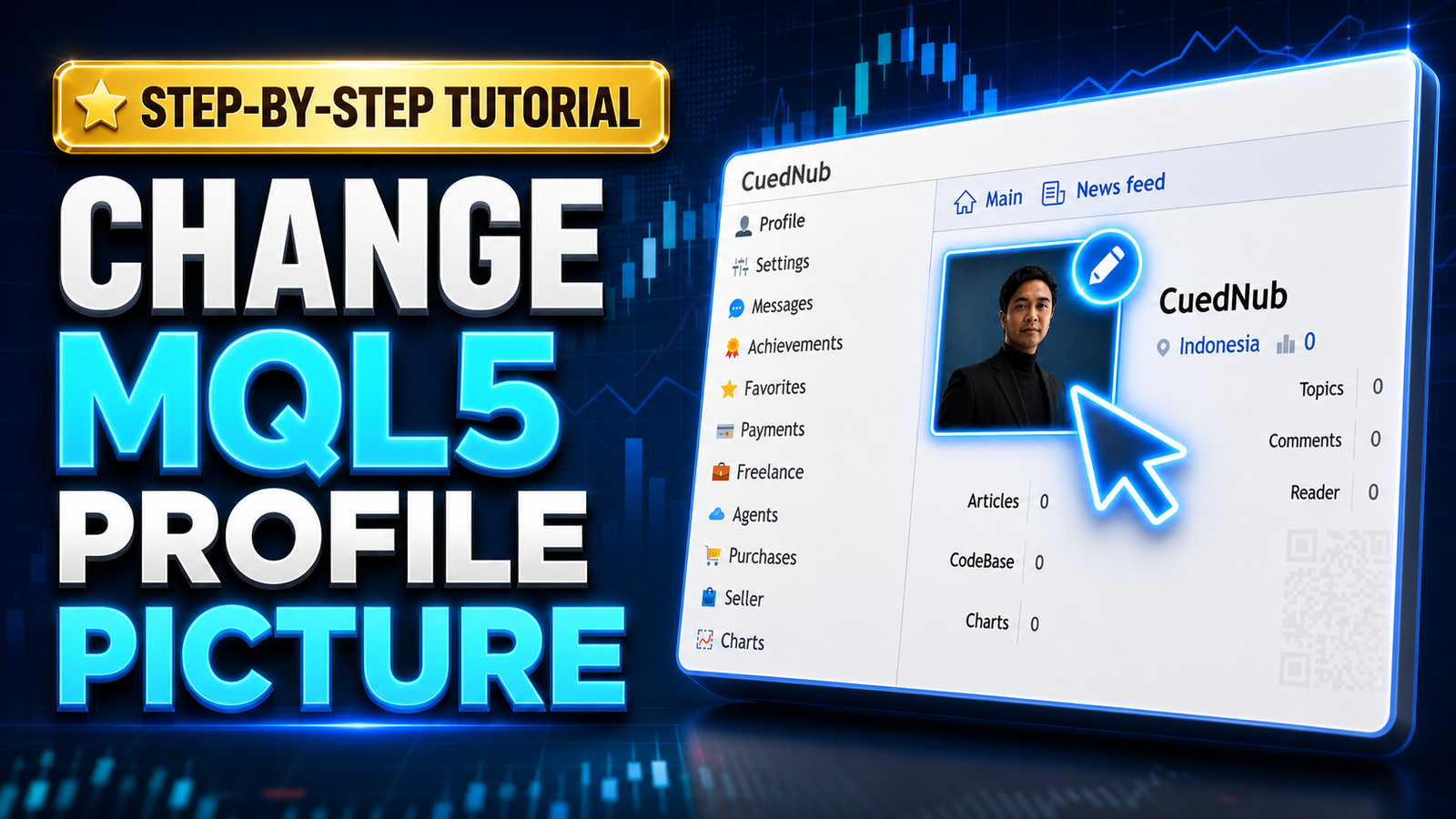
Learn how to change MQL5 profile picture with our simple step-by-step tutorial. Customize your MQL5 account avatar to build a professional trading profile.
If you want to know how to change MQL5 profile picture to update your MQL5 account avatar, you are in the right place. Creating a professional presence in the trading community is very important. Therefore, a good profile photo can help you stand out. In addition, it builds trust with other traders and developers on the platform.
Many beginners skip this simple step when setting up their accounts. However, leaving the default image makes your profile look incomplete. If you are new to the platform and haven’t registered yet, make sure to read our complete guide on how to create an MQL5 account before proceeding.
In this tutorial, we will guide you through the entire process. Furthermore, we will explain everything clearly with visual screenshots. By the end of this guide, your trading profile will look much more credible.
First, let us discuss why you need to change MQL5 profile picture. The MetaTrader community is filled with thousands of professional traders, freelance developers, and signal providers. Consequently, standing out requires a professional image. People naturally trust a real human face or a clean logo over a blank gray silhouette.
Moreover, if you plan to sell trading robots or provide signal subscriptions, buyers will look at your profile. A clear photo shows that you take your business seriously. As a result, you might actually increase your sales and subscriptions just by looking more professional.
Also, it is crucial to follow the platform guidelines. Before uploading, ensure your image does not contain offensive material. It must comply with the official MQL5 community rules to avoid sudden account suspension. Always use a high-quality, appropriate image for your trading business.
Before you start the steps to change MQL5 profile picture, you need to prepare your image file. Doing this early will save you a lot of time. First, make sure the photo clearly shows your face or your brand logo. Avoid using busy backgrounds that distract the viewer.
Next, you must check the file format for your new MQL5 account avatar. The website accepts standard image formats like JPG, GIF, or PNG. However, we highly recommend using a high-quality PNG or JPG file. In addition, you should use a square image ratio, such as 500 by 500 pixels. This specific size makes the cropping process much easier later.
Finally, check the file size of your chosen picture. Large image files might fail to upload on a slow internet connection. Therefore, try to compress your image so it is under 2 Megabytes. Once your picture is ready, you can move on to the uploading process.
Now, we are ready to execute the main task. The process to change MQL5 profile picture is very fast. In fact, it will only take a few minutes of your time. Please follow these exact steps below carefully.
First, open your web browser and visit the official MQL5 website. Then, enter your login credentials to access your dashboard. Once you log in, look at the top right corner of your screen.
You will see your username and a default image icon. Click on your profile icon located at the top right header. After that, a drop-down menu will appear, or it will redirect you to your main profile page.
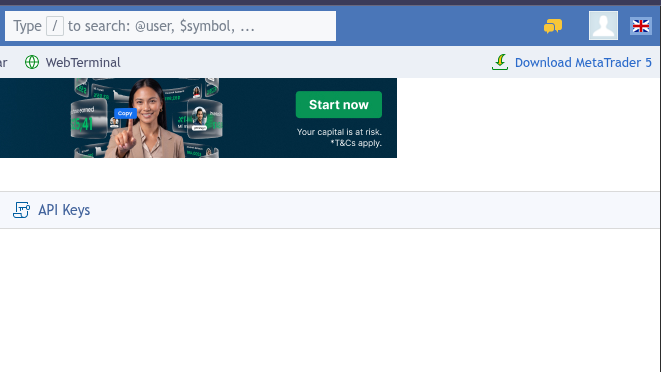
Next, look at the left side of your main profile page. You will see a large, empty gray box representing your current photo. This is where your new image will appear shortly.
Move your mouse cursor over this empty box. Consequently, a small gear icon will appear in the bottom right corner of your MQL5 account avatar placeholder. Click the gear icon to open the settings menu.
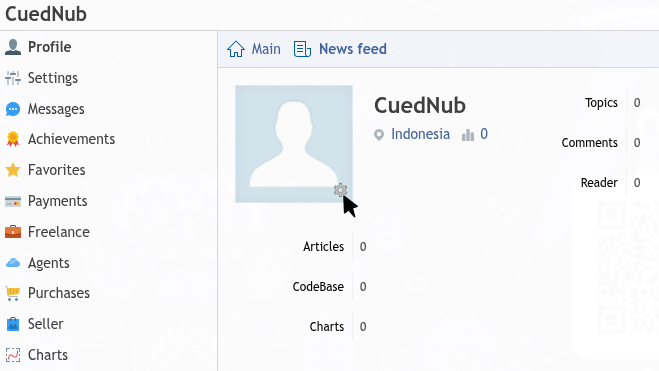
After clicking the gear icon, a new popup window will appear on your screen. This window is titled “Avatar”. Inside this box, you will see a button labeled “Choose File”.
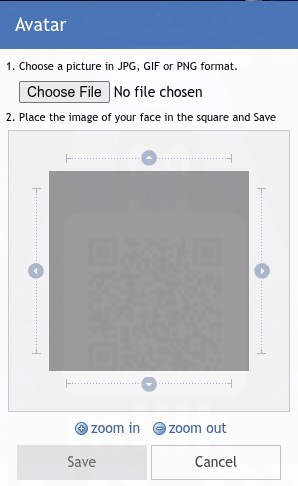
First, click this button to open your computer’s file manager. Next, browse through your folders to find the professional photo you prepared earlier. Select the image file, and then click the “Open” or “Select” button on your computer.
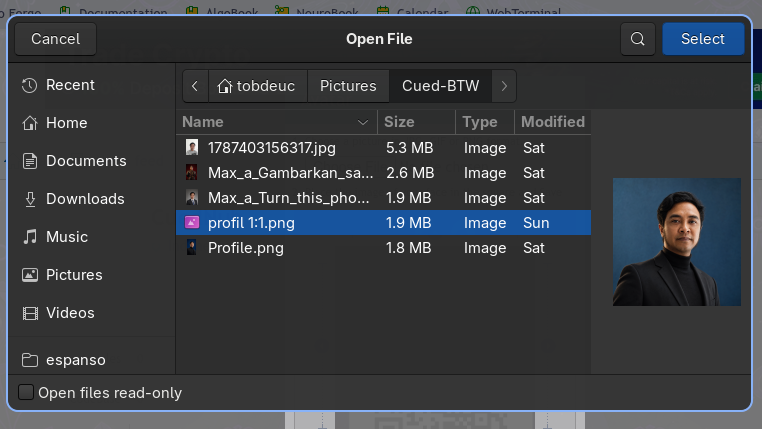
Once the file is uploaded, the platform will show a preview of your face. Often, the system needs you to adjust the framing. You will see a square cropping tool over your image.
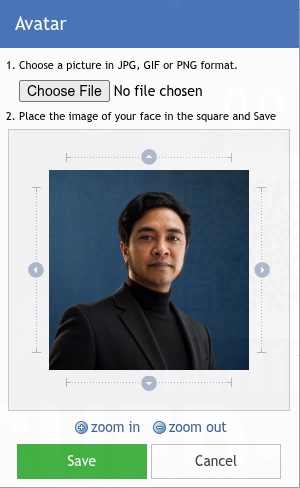
Simply drag the corners of the square to frame your face perfectly in the center. Furthermore, you can use the zoom in and zoom out buttons if your face looks too small. Finally, click the green “Save” button to apply your new MQL5 account avatar.
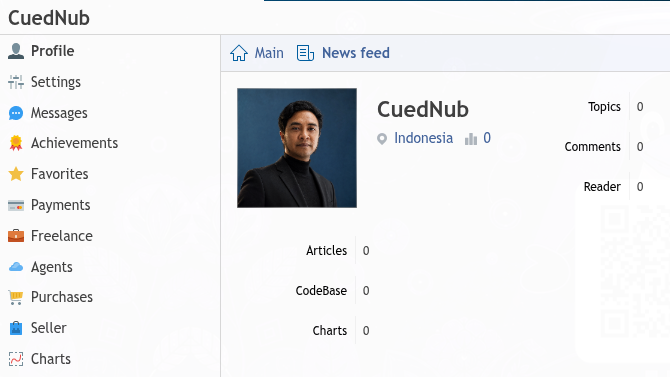
Sometimes, users face issues when they change MQL5 profile picture. First, the most common mistake is uploading an image that is too small. If your image is blurry, it will ruin your professional appearance. Therefore, always start with a high-resolution source file.
Another frequent issue is ignoring the file format. As mentioned earlier, the system only accepts specific file types. If you try to upload a modern WEBP image, the system might reject it. Always convert your images to JPG or PNG before starting the process.
Lastly, some people crop their faces too closely. If you zoom in too much, the final result will look awkward in the small chat boxes on the forum. Always leave a little bit of space around your head when adjusting the crop tool.
Congratulations on successfully updating your MQL5 account avatar! Now that your profile looks professional, it is highly recommended to secure your account. A great profile often attracts unwanted attention from hackers.
Therefore, you must protect your assets and trading history. Learn how to change MQL5 password from the default one to a highly secure combination. This simple security step prevents unauthorized access to your funds and trading robots.
In addition to security, you should complete your bio section. Write a short description about your trading experience. Mention the strategies you use and your goals in the market. A complete bio combined with a great picture creates the ultimate professional portfolio.
Can I change MQL5 profile picture on my mobile phone?
Yes, you can update your image using a mobile browser. You just need to log in to the website via your phone. Next, follow the exact same steps. However, cropping the image might feel a bit harder on a small screen.
How often can I update my avatar?
You can update your picture as many times as you want. There are no strict limits on how often you modify your profile details. Still, we recommend keeping the same photo for a long time. This helps people recognize your brand easily.
Why is my uploaded picture sideways?
Sometimes, photos taken on smartphones contain rotation metadata. When you upload them, they appear sideways. To fix this, open the photo on your computer first. Then, rotate it correctly, save the file, and upload it again.
Overall, taking a few minutes to change MQL5 profile picture is a great investment. It instantly transforms your default account into a trustworthy identity. Whether you are a beginner or a seasoned expert, presentation always matters.
Always remember that first impressions are crucial in the financial industry. By following this tutorial, you have taken a great step toward building a solid reputation. Now, you can confidently participate in the forums, sell your services, or copy successful signals.
Keep exploring the platform and learning new MetaTrader features. Good luck with your trading journey, and enjoy your brand-new, professional account appearance!